How to Create a damn Beautiful desktop like mine
In this article I'll show you how to get the perfect desktop setup in linux, specifically elementary os.
Get that OS / desktop environment
Yeah If You got to make your desktop every single damn pixel same as me then you need that DE. And that's called Pantheon the elementary OS's default DE (Well DE is desktop environment). How do you get that??Well if you want it best install eOS.

Or if you can't leave your current Linux Distro Just Get the pantheon DE.
Warning :- Pantheon might show some quirks with other distros.
- Open Terminal (Ctrl + Alt + T)
- Add repository (Use this repository at your own risk!)
sudo add-apt-repository ppa:elementary-os/daily - Update and install
sudo apt-get update
sudo apt-get install elementary-desktop
Get the Elementary tweaks
You would extremely like to install the elementary tweaks so as to configure a few niches yourself therefore here it is : -
sudo apt-add-repository ppa:versable/elementary-update
sudo apt-get update
sudo apt-get install elementary-tweaks

Once installed, navigate to : Applications > System Settings > Tweaks to access it
A deliberate design feature of elementary OS is the fact there is no minimize button on the window controls. elementary tweaks allows you to add one by selecting “Windows” for Button Layout drop down.
Get that Wallpaper
This is the super easy step Just save the wppr given below ;p
Get that dock
Well this might be a little work if you want a more configurable dock than the default plank that ships with the eOS. You might skillfully skip this section if you don't need docky.
- Install docky from the Software Center (or from the Docky PPA).
- In System Settings, open Tweaks, then click Cerbere (under Applications).
- Click the plank entry in the Watched Processes list, then click the minus sign at the bottom of the panel to remove the entry.
- Now click the plus sign; in the popup that appears, type docky and click the green plus sign to add docky to the list.
- Still in System Settings, click All Setings to return to the main settings window.
- Click Applications.
- In the Applications window, click Startup to bring up your list of startup applications.
- Click the plus sign and select Docky from the list. (Note: If plank is in the startup list, be sure to remove it.)
- Log out (or restart), log in, and enjoy your new dock.
Get that Icon theme
Well I used the ever beautiful Numix Circle Icon theme that looks completely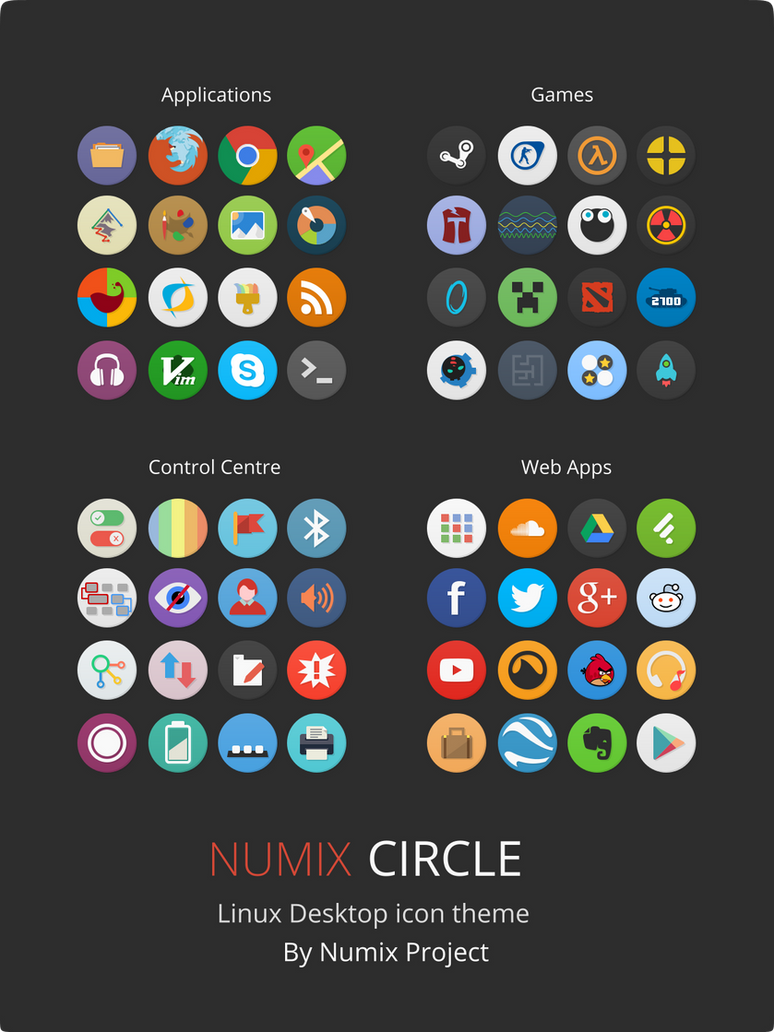
ROUND
To install it paste these commands in your terminal line by line one at a time.
sudo apt-add-repository ppa:numix/ppa
sudo apt-get update
sudo apt-get install numix-icon-theme-circle
sudo apt-get update
sudo apt-get install numix-icon-theme-circle
Get that conky
Yep that little clock you saw out there runs on a program called Conky. Just like cli rain-meter.;-)And that conky's designed by me.
get it here http://adityaultra.deviantart.com/art/Simplexd-tar-533611525

You gotta paste the .conkyrc file in your home folder and follow the steps from the guide below-
to install conky :-
http://www.wikihow.com/Configure-Conky
Adittional
If you need a little more touch, Install Vertex theme.
from here -





_Cinnamon.png/1024px-Linux_Mint_17_(Qiana)_Cinnamon.png)
